Track Information
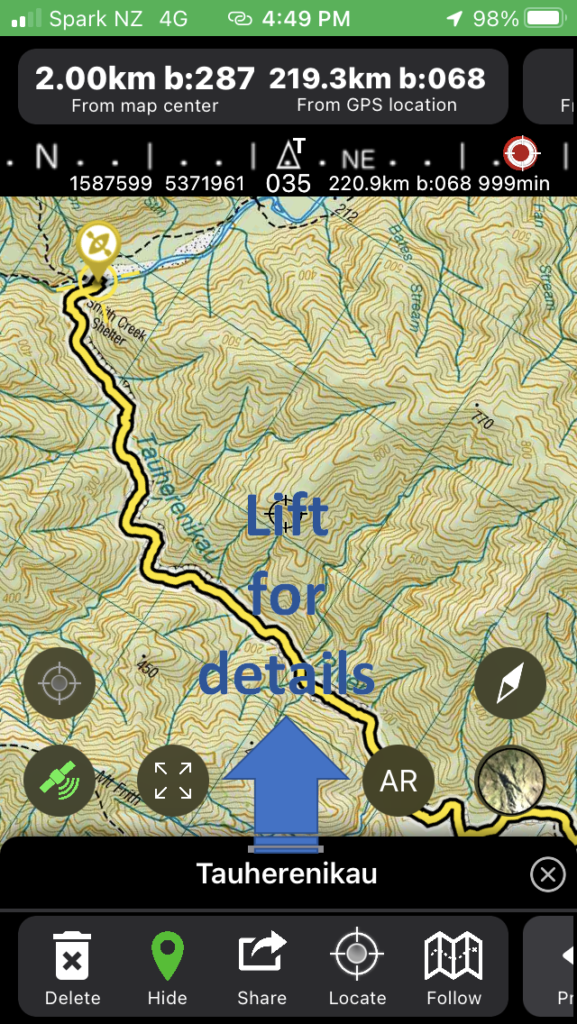
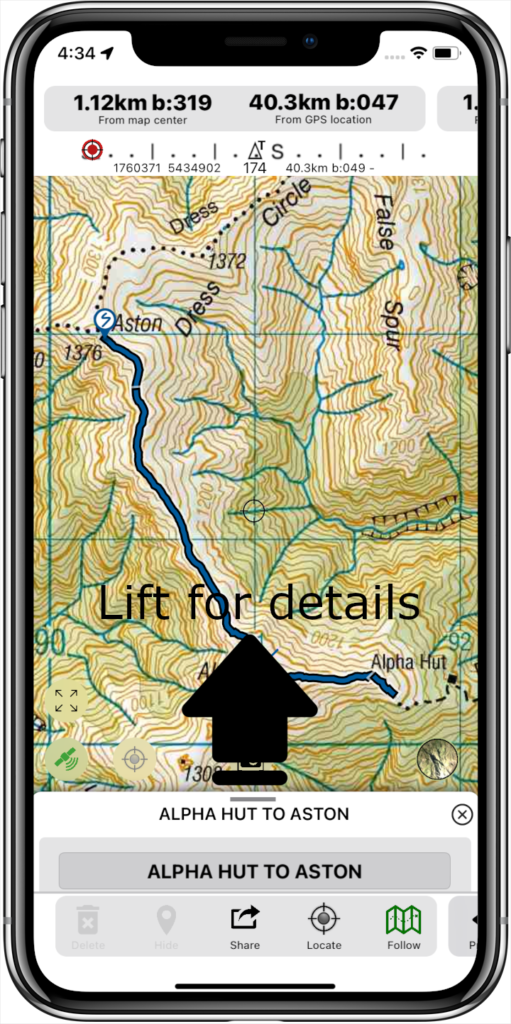
When you select a waypoint or track from the search table or from the map, you will see some navigation details appear at the top of the map, and the name of the track/waypoint and editing buttons will appear at the bottom of the map. Further details can be seen by dragging up the information window. Alternatively if you long press on the waypoint/track then the details information page will open directly. The information and editing information that is displayed will be different depending on what type of object it is (track, waypoint, region), and whether it is a fixed object or one that you have created or recorded.
Track Controls
The track controls are displayed along the bottom of the map. Different menu bars can be accessed by swiping the bar to the left or right. The first menu bar contains controls for deleting, hiding/showing, sharing (exporting), locating, and following the track.
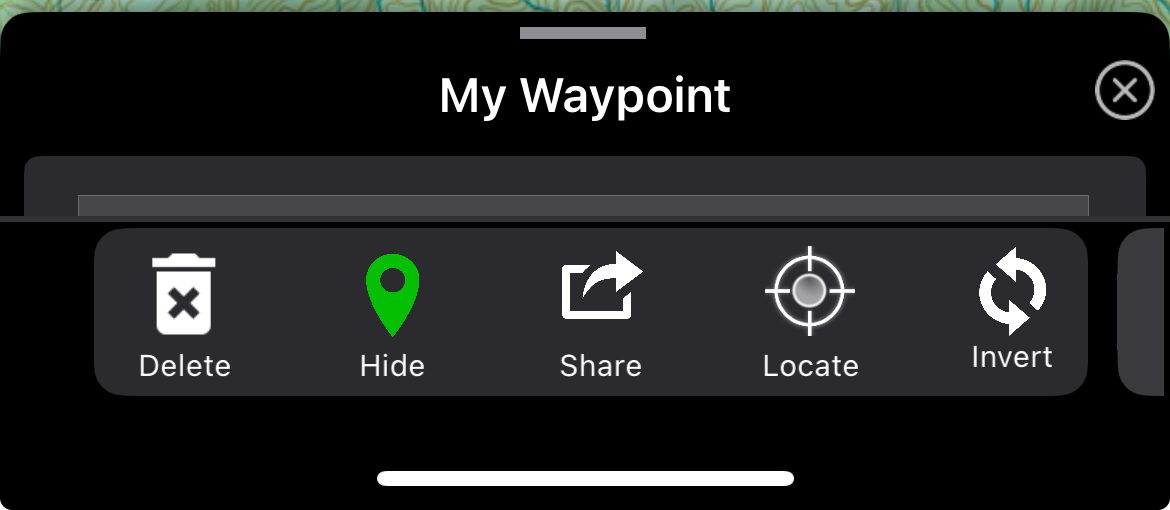
The delete button can be used to delete the selected object. You will be prompted for confirmation, and then it will be permanently deleted.
The hide button is used to set the visibility of the selected object. If it is hidden then it will no longer display on the map screen but is not deleted. It can be accessed from the search table and made visible again if required. When you hide a selected track it will remain faintly visible until it is de-selected, or made visible again.
The share button is used to create a file in a common format that can be used by yourself in other apps, or shared with other people for them to use. Formatting in KML or GPX format is possible. The format to use can be selected from the Settings page. When you tap the share button you will be given options for what to do with the file created. This is dependent on your phone setup, but may include a number of options such as saving it as a file, emailing it to someone, opening it with other apps that are able to import these types of files, or other options.
The locate button will shift the map position so that the selected object is on the screen.
The ‘Invert’ (or Forward/Reverse) button swaps the direction of the track.
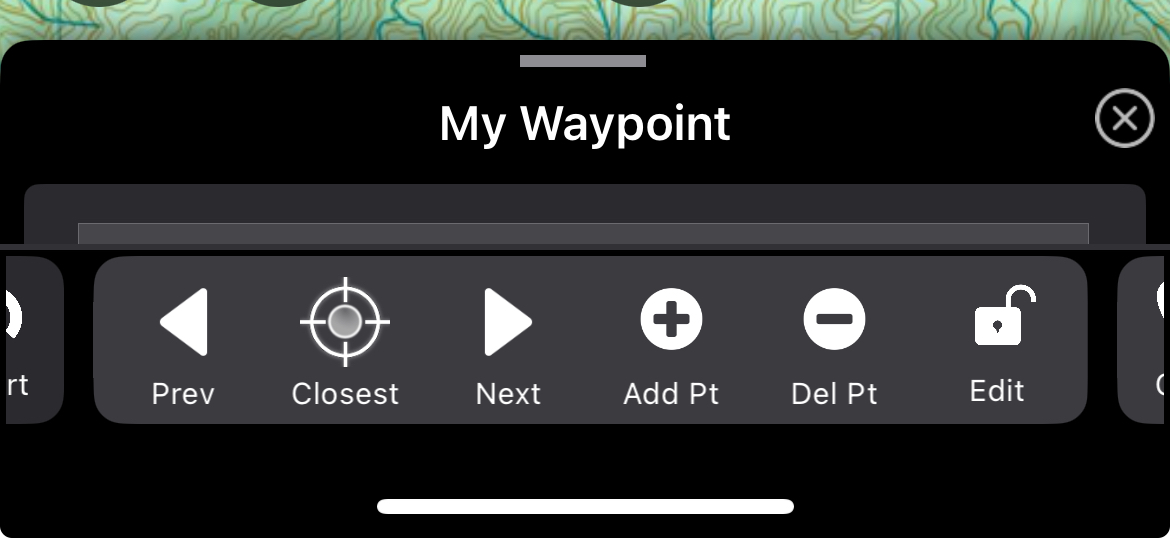
The second menu bar displays options for adding or editing points along a track. If the selected object is a waypoint then it becomes a route if you add data points to it. If the object is a recorded track with time data associated with each data point, then new data points can be added but may produce artefacts in calculated track times and velocities.
The currently selected data point is highlighted on the map with a diagonal cross hair display. The selected point can be adjusted with the Previous and Next buttons. If track following is turned on then changing the selected point will change the current target point for following. Note that the selected point may also automatically change if you approach the point.
The Closest button can be used to jump to the nearest data point on the track. If follow mode is off then it will select the closest position to the current focus point on the map. If follow mode is on then it will jump to the nearest point to your current GPS position in the direction of travel of the track (ie if you are close to one point but have passed it in the direction of the next point then the next point will be selected)
The Add button will add a datapoint after the currently selected point, using the focus point of the map for the grid coordinates. The Delete button will remove the currently selected point.
The Edit button is used to lock the track and prevent additional changes to the datapoints. Tap it again to unlock the track and allow editing.
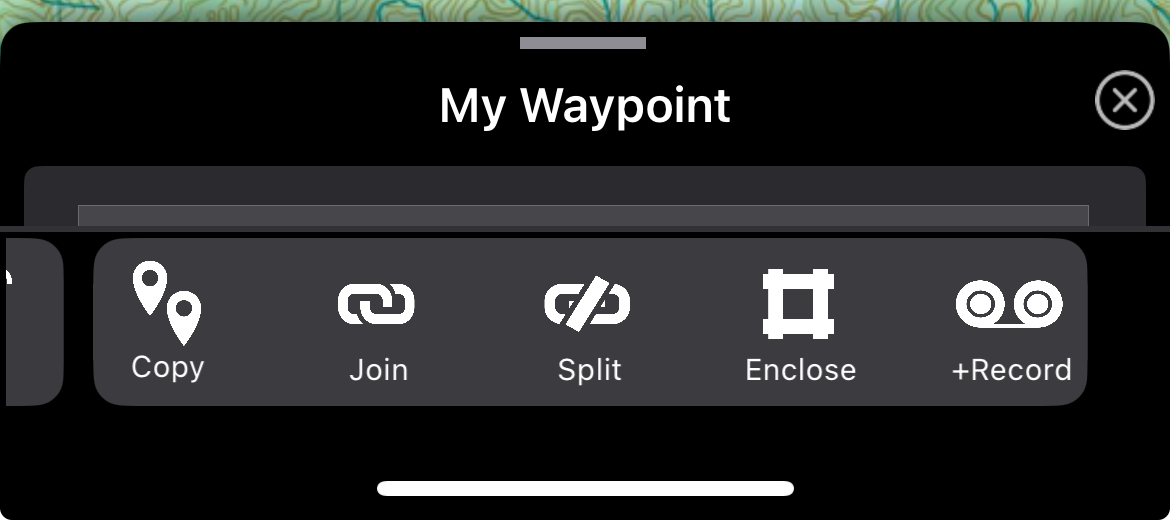
The third menu bar gives further options for modifying routes or tracks.
‘Copy’ is used to create a duplicate of the selected track. This is useful, for example, if you want to create your own editable copy of the built in tracks.
The ‘join’ button can be used to join two tracks. Select the first track, tap join to set it as the initial track, then select the second track and press join again. A new track is created from the two joined tracks. The original tracks are retained unmodified. Routes (tracks without timepoints) or regions boundaries can be joined interchangeably with recorded tracks but the result will have unspecified time data associated with some of the datapoints.
Split is used to split a track or route into two tracks. The split is made at the currently selected datapoint and should be preselected using the Previous and Next buttons.
‘Enclose’ sets a track or route to be displayed as a filled region. Tap it again to display it as a line only.
‘+Record’ can be used to continue recording onto the end of an existing track. There may be discontinuities in the recording if your current location is different to the end point of the selected track.
Navigation Information
The top of the map shows navigational information related to the selected track.

The navigational information bar displays the distance and bearing between the current map center point and the selected track. If GPS is turned on then the distance and bearing to your current location is also displayed. If the selected object is a waypoint then the distance and bearing is to the location of the object. Otherwise, the distance and bearing is to the location of the currently selected datapoint along the track/route.

The second navigation information panel shows information related to points along a route or track. The distance along the track from the start point to the selected point is displayed, along with the remaining distance to the end of the track. If track following is enabled then the distance to the currently selected datapoint is also displayed.
Additional Track Details
Select a track or waypoint from the map screen or from the search table to show further details about it and to customise it. Drag up the title bar displaying the track name to expand the full details window. You can also long press on an object to directly open the full details window.
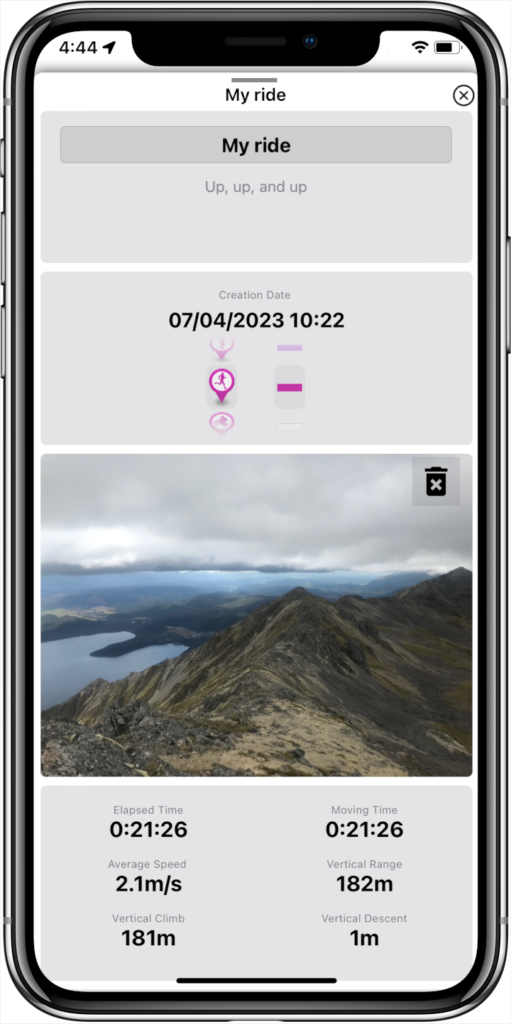
A title and description for the object can be added at the top. Below that, the track icon and colour can be selected. You can add an image to the object either by taking a new photo or selecting an image file. Below this further statistics are displayed including elapsed and moving times and average speed (if it is a recording with time points), and the vertical climb and descent (if it has altitude data).
Further details include the linear length of a route or track, the enclosed area (for non-overlapping lines), and vertical climb and descent as calculated by the known ground elevation from the built in digital elevation model (DEM). This may differ from the vertical climb and descent calculated from recorded GPS altitudes due to errors in GPS measurement and limited resolution in the DEM model, or if the track was not recorded at ground level.
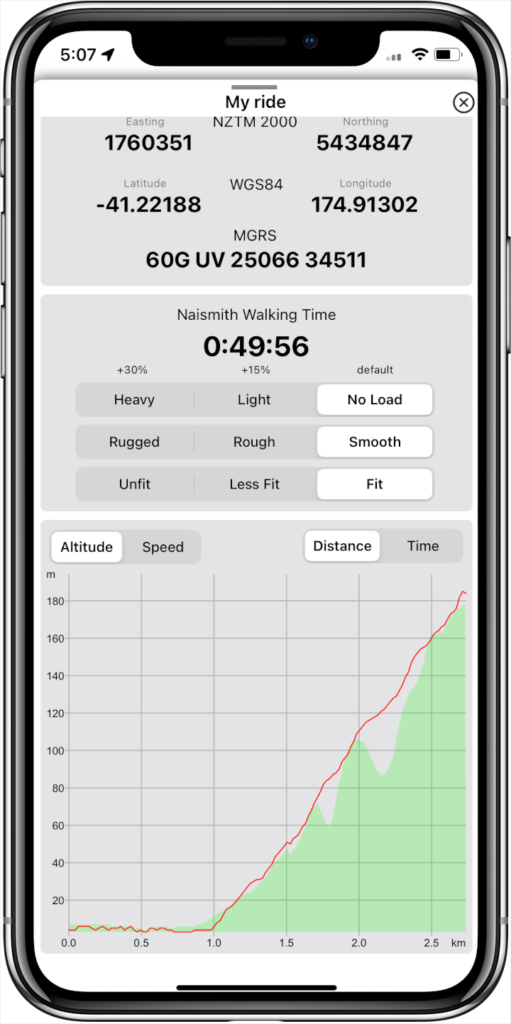
The grid reference displayed is for the location of a waypoint or for the starting point for a route or track. It is displayed in NZ trans-mercator 2000 easting and northing (used in LINZ topographic maps), WGS84 global longitude and latitude, and in military grid reference system coordinates.
Naismith walking time is a calculated estimate of the time it would take to walk the track or route based on the length and elevation change of the track. If the settings are all on ‘default’ then the time calculated is according to Naismith’s rule, assuming a walking speed of 5 km/hr and 30 minutes for every 300m vertical gain or descent and is considered to be representative of a fast walking pace over easy terrain. The adjustments for load, track type, and fitness are not official Naismith corrections but can be used to add 15% increments to the calculated time. The descriptors used are qualitative indications only. Adjust as you feel appropriate.

At the bottom of the track details page a graph is displayed. Use the toggles to select a plot of altitude profile or speed on the y-axis, and distance or time on the x-axis. Speed and Time axes are only available if the track has time data.
For altitude, the red line shows recorded GPS altitude data if present. The green profile shows the calculated ground elevation.